Mac desktop widgets are small live panels that sit directly on your wallpaper, behind your windows, showing information or running a tiny interaction without opening an app. Since macOS Sonoma you can drag them straight onto the desktop, where they fade back as you work. Most show a clock or the weather. A handful of them you can pick up and play with.
Widgets is a small library of those second ones — quiet, playable things for your desktop. Six of them are running on this page right now. No download, no sign-up, nothing to install to find out whether you like them.
Free widgets stay free. Paid ones are one-time — no subscription.
Click anywhere on the water.
For about a decade, widgets on a Mac lived in a drawer. Dashboard arrived in 2005, held a calculator and a world clock behind an F12 keypress, drifted into neglect, and Apple finally removed it in 2019. What replaced it was the Notification Centre panel — better looking, still a drawer. You had to go and get your widgets, which meant you mostly didn't.
macOS Sonoma changed the location, and the location was the whole problem. Widgets now sit on the desktop itself. They tint themselves to match your wallpaper and recede while you work, then come back when you clear your windows. A widget on a Mac desktop is passive by design — it renders, it updates, you glance at it.
That design is right for a calendar and wrong for anything else. A weather widget should be a read-only panel. But the same patch of screen can hold something you touch, and almost nobody builds that. That patch of wallpaper is the most-seen, least-used surface on the machine.
These get used interchangeably and they behave nothing alike. Worth separating before you go hunting, because the search terms lead to different software:
| Kind | Where it lives | Interactive? | Built with |
|---|---|---|---|
| Desktop widget | On the wallpaper, behind windows | Taps only | WidgetKit |
| Menu bar app | Top-right of the screen | Yes, in a popover | AppKit, LSUIElement |
| Desktop pet | Floats over everything | Yes, it reacts to you | Transparent NSWindow |
| Live wallpaper | Behind everything | No | Screen saver or web view |
| Widget game | On the wallpaper | Fully playable | WidgetKit + SpriteKit |
Apple's own Mac Help guide to adding widgets covers the first row thoroughly. The rest of this page is about the other four, because nobody else is documenting them properly.
A desktop widget game is a complete, tiny game that runs inside a widget on your wallpaper rather than in a window. No Dock icon, no app to switch to, no full screen. You flick something, it responds, you go back to work. The round lasts eleven seconds.
This category barely exists. Search for it and you'll find a 2012 blog post about Dashboard, a MakeUseOf roundup of widgets that stopped working seven years ago, and one developer quietly shipping chess and minesweeper as real WidgetKit widgets. That's close to the whole field.
The six above are ours, running in your browser as a preview. Two have shipped so far: OSXPool, a free pool game for Mac that plays solo eight-ball on the wallpaper, and OSXBall, a free basketball game for Mac that puts a side-on hoop on your desktop. Both are finished downloads today. Each one is a game we ship for macOS — the browser build is deliberately the same interaction, so what you try here is what you get. Play with the tabs; they're all different.

Click to drop a stone. Rings spread, meet, cancel each other out. Nothing to win. The one people leave running.
A weighted ball with real physics. Drag and release to fling it. Gravity is a slider, so you can make it lunar.
A circle that expands over four seconds, holds, contracts over six. Follow it or ignore it.
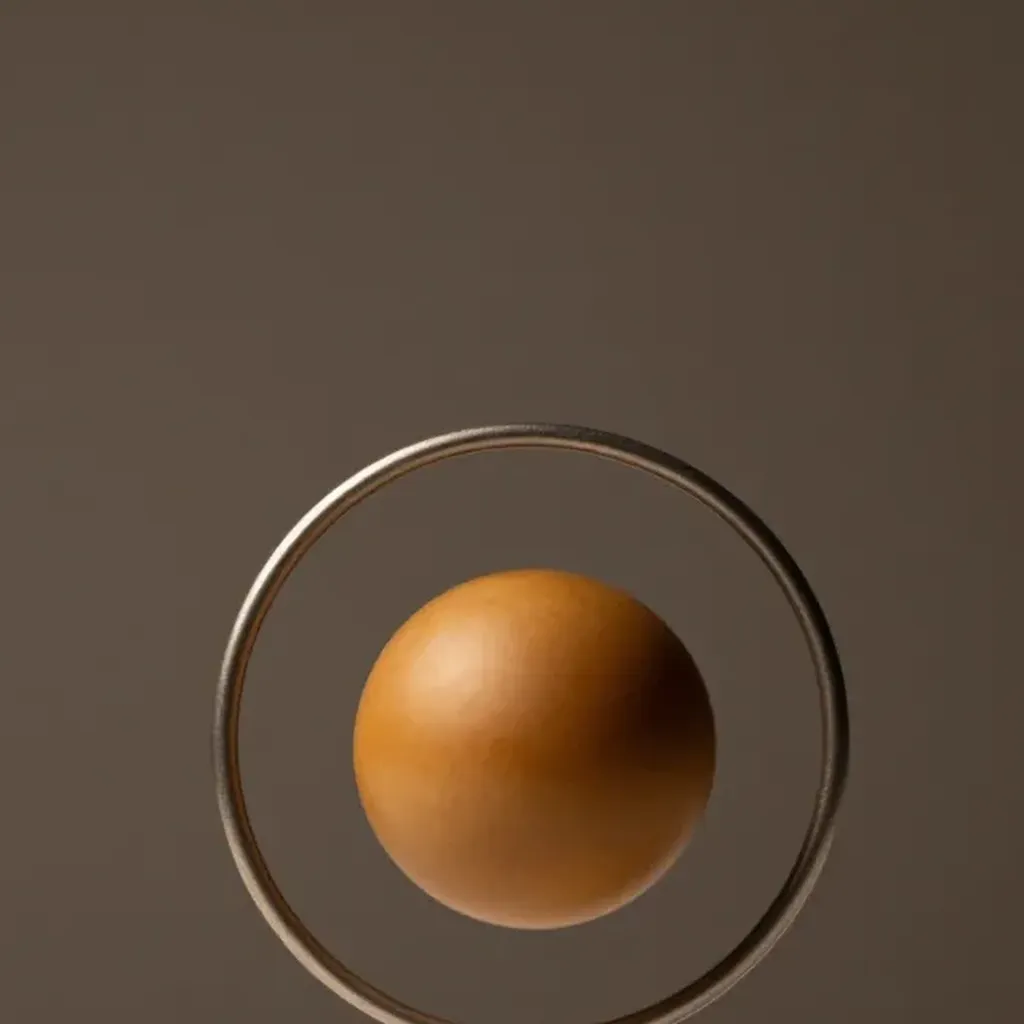
A basketball hoop on your wallpaper. Flick to shoot, and it keeps the score. Shipped as OSXBall, a free basketball game for Mac; its sibling OSXPool does the same for eight-ball.
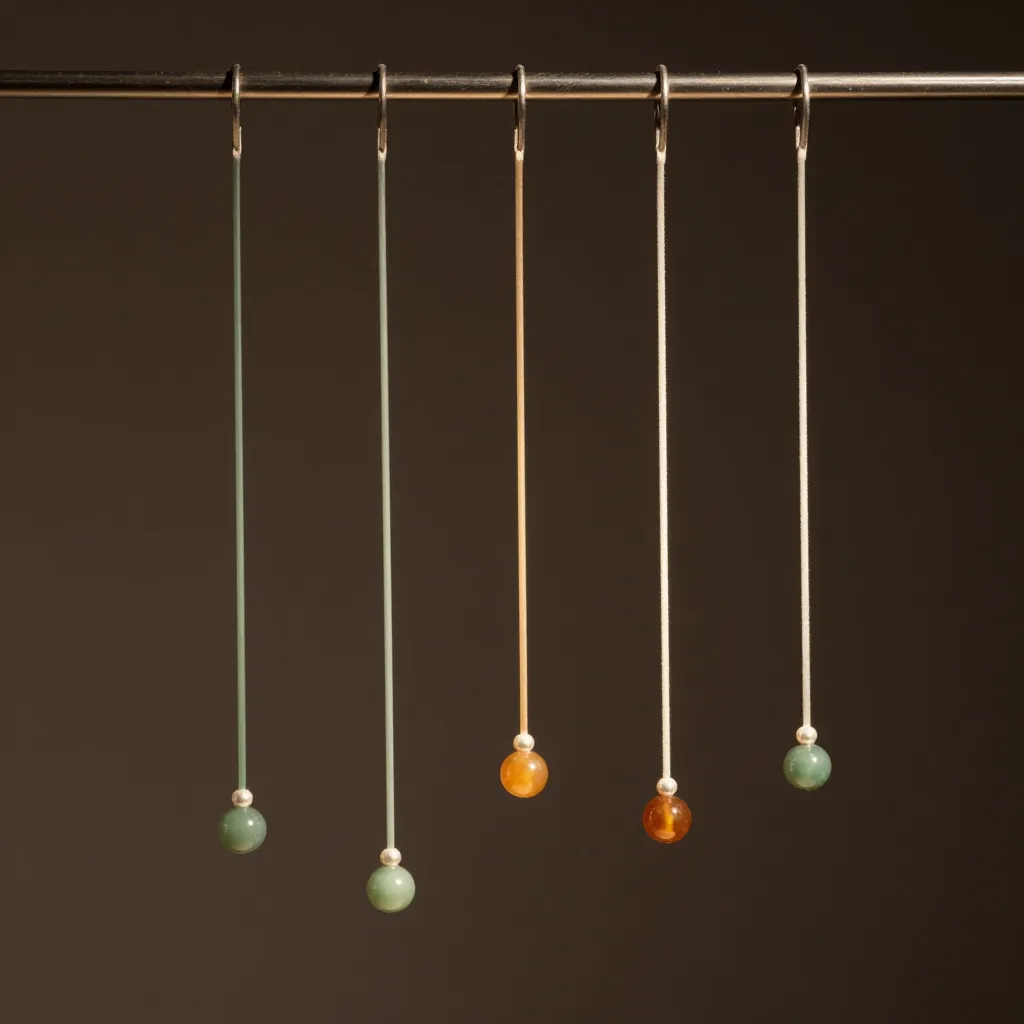
Suspended bars you knock into each other. Pentatonic, so it cannot sound wrong.
Slow particles with a light current. Push them with the cursor; they resettle. Pure ambience.
The constraint that makes these work is the same one that makes them hard to build: a widget has to be ignorable. Desktop Goose, the genre's landmark, is deliberately the opposite — it drags your cursor and drops mud on your screen, and it's funny for about a day. A widget game you keep is one that never demands anything.
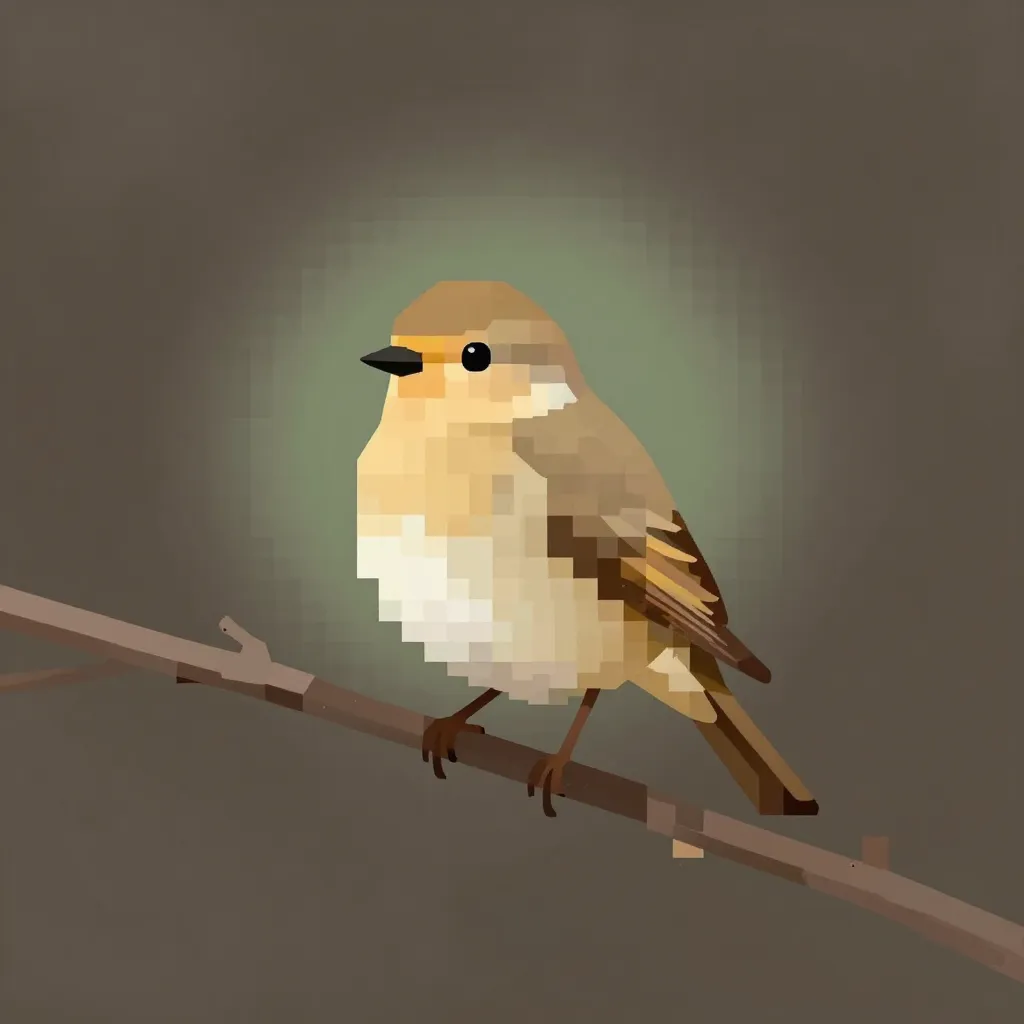
A desktop pet is a small character that moves around your screen on its own — walking along window edges, sleeping, reacting when you click it. It's the oldest idea in this space: Shimeji started as a Windows mascot, and Desktop Goose turned it into a phenomenon with 3,700-plus comments on itch.io.
Technically it isn't a widget at all. It's a borderless transparent window floating above your other windows, usually click-through except where the character is. That difference matters: a widget sits behind your work and a pet sits in front of it. Pets are more charming and more intrusive, and which you want depends entirely on whether you're the sort of person who keeps forty tabs open.
A good one does three things most don't: it never steals keyboard focus from whatever you're typing in, it stays clear of the menu bar and Dock, and it can be sent away with one shortcut. Our bird biome, Feather, is the pet in this collection — a small aviary at the edge of the screen where birds arrive, feed and leave on their own schedule. You can watch it or forget it.
Never takes focus · respects full-screen apps · one shortcut to hide · no sound by default · does not follow the cursor unless invited.
Blocks clicks on the desktop · reappears over full-screen video · makes noise in meetings · wakes the GPU when idle.
Be honest about why you came here: you probably wanted a clock. The most-searched Mac widgets are unglamorous and that's fine — a desktop that tells you the time, the weather and what's next is a desktop you don't have to interrogate. Here's what each one is genuinely for, and where the free version runs out.
Apple ships one, and for a single time zone it's enough. The reason to replace it is a world clock: if you work with people in two or more time zones, a widget showing three cities side by side removes a daily mental calculation. Look for one that shows the UTC offset, because that's the number you actually need when scheduling.
The built-in weather widget is accurate and slow to update. Third-party ones are worth it for one feature: precipitation timing rather than a daily summary. "Rain in 20 minutes" changes what you do; "60% chance today" does not.
The highest-value widget on this list and the most overlooked. A visible countdown on the desktop behaves differently from one hidden in a menu — you glance at it without deciding to. If you work in Pomodoro blocks, a desktop timer widget is the one that actually changes behaviour.
The original Dashboard widget, and still the purest case for the format: you need it for nine seconds and opening an app for nine seconds is absurd. Worth having a running tape so you can see the last three figures you entered.
Different from the Notes app in one way that matters — a sticky note widget is for things with a lifespan of hours. A flight number, a meeting room, a one-time code. Keeping those out of your permanent notes is the whole point.
Consistently among the most-searched Mac widgets, and the most disappointing in practice. Spotify's own desktop widget support is limited, so most options are third-party controllers reading the now-playing state. Judge one on whether it can skip a track without stealing focus from what you're typing.
Only worth adding if it reads from the list you already keep. A to-do widget with its own private database becomes a second place to forget things. Check it syncs with Reminders, Things or Todoist before installing.
| Widget | Best for | Apple's built-in is… | Replace it when |
|---|---|---|---|
| Clock | Multiple time zones | Fine for one zone | You schedule across regions |
| Weather | Rain timing | Accurate, slow | You commute or ride |
| Timer | Focus blocks | Buried in Clock | You work in sprints |
| Calculator | Quick sums | Not a widget | Immediately |
| Sticky notes | Hours-long scraps | Notes is permanent | You paste codes often |
| Music | Skip without switching | Music only | You use Spotify |
| To-do | Glanceable next action | Reminders widget is good | You use another app |
People customise a Mac desktop in roughly four layers, and widgets are only one of them. Knowing the layers stops you installing something in the wrong one.
The static base. macOS Sequoia's dynamic wallpapers shift with the time of day. Zero performance cost, zero interactivity.
Runs when you step away. A custom MacBook screensaver is the most-overlooked customisation — Sonoma's aerial savers slide into the wallpaper when you wake, which is the nicest transition Apple has shipped in years.
Live panels on the wallpaper. This layer is where information and small interactions belong.
Pets, overlays and HUDs that sit above your windows. Most power, most potential to annoy.
For deeper tinkering there are two long-standing free tools worth knowing. Übersicht lets you write desktop widgets in HTML, CSS and JavaScript — the closest thing the Mac has to Rainmeter on Windows. Plash, by Sindre Sorhus, turns any web page into your wallpaper, which means any ambient animation on the web becomes a live background for free.
We'd rather tell you that than pretend it doesn't exist. If you're comfortable with a config file and you want one specific thing, Übersicht or Plash will get you there without paying anyone. What we sell is the version that works in two clicks, behaves itself on battery, and doesn't need maintaining.
Four steps, about fifteen seconds, on macOS Sonoma or later.
Choose Edit Widgets from the context menu. You can also click the date and time in the menu bar, then Edit Widgets at the bottom of Notification Centre.
The left column lists every app on your Mac that ships widgets, plus — if your iPhone is on the same Apple ID and nearby — your iPhone's widgets via Continuity.
Drop it where you want it. Widgets snap to an invisible grid and push each other aside rather than overlapping.
Small, medium or large. Click the wallpaper to finish. Widgets tint to match and fade back when a window covers them.
If the widget you want isn't listed, the app isn't installed or hasn't been opened once since installing. macOS only registers a widget after its parent app has launched at least once. Open the app, then look again.
Plenty of the best widget apps for Mac are free, and some of the paid ones are thin. A rough guide after building a few of these:
Clocks, weather, battery, calendars. The data is free, the rendering is easy, and Apple's built-ins are decent. Paying a subscription to see the time is absurd.
Physics, animation, sound, state that persists. These cost real engineering and real battery tuning. A one-time price between about eight and fifteen dollars is normal.
Avoid subscriptions for widgets. A widget is a small, finished thing. A monthly fee implies ongoing server costs that a desktop clock does not have. Some widget downloads on the Mac App Store quietly charge monthly for exactly this — check before installing.
Everything in Widgets is either free forever or a one-time purchase. Nothing here phones home, and nothing needs an account.
Yes. They run on macOS as small floating apps rather than as widgets — a transparent, borderless window that sits above your other windows with a character inside it. Several are free and open source, including ports of Shimeji and Bongo Cat, and Desktop Goose is pay-what-you-want. They install like any other Mac app and are removed the same way.
Yes, and the free ones are genuinely good. Bongo Cat is MIT-licensed, RunCat is free with an optional tip, and several Shimeji ports cost nothing. Paid pets usually add multiple characters, sound, or behaviour that responds to what you're doing. Start free — a desktop pet is something you either keep for years or delete in a day.
A few. Most only idle and react to clicks, but some add a light game layer — feeding, collecting, or a creature that grows over days. The nearest widget-based equivalents are playable games like chess and minesweeper built with WidgetKit, and ambient idle games such as Rusty's Retirement that run in a strip at the bottom of your screen while you work.
Yes — any Mac running macOS Sonoma or later supports them, including every Apple Silicon MacBook Air. Right-click the desktop, choose Edit Widgets, and drag one on. On a 13-inch screen, stick to small widgets in one corner; medium and large ones leave little usable desktop.
Three places. The Mac App Store is safest and handles updates. Developer websites often have the same app, sometimes cheaper, and should be notarised by Apple — macOS will warn you if not. GitHub hosts most free and open-source widgets. Avoid download-aggregator sites, which frequently wrap Mac apps in their own installers.
Well-built ones are negligible. One that refreshes every few minutes costs almost nothing. Animated widgets and floating pets do use the GPU, so on a laptop look for one that pauses when on battery or when its window is covered. If a widget keeps your fans on, that's a bug in the widget, not a cost of the format.